Let Me Solo IT listens to your call and shows you a short hint instantly, written the way you would say it, with the key points and copy-ready code. In a small private window over your call.
Windows, macOS and Linux. A ready-made build for each.
Let Me Solo IT
Your unfair advantage
The silence after a hard question is where a call is won or lost. You are the one who never loses the thread: the answer, the points they care about and the code, the moment they ask.
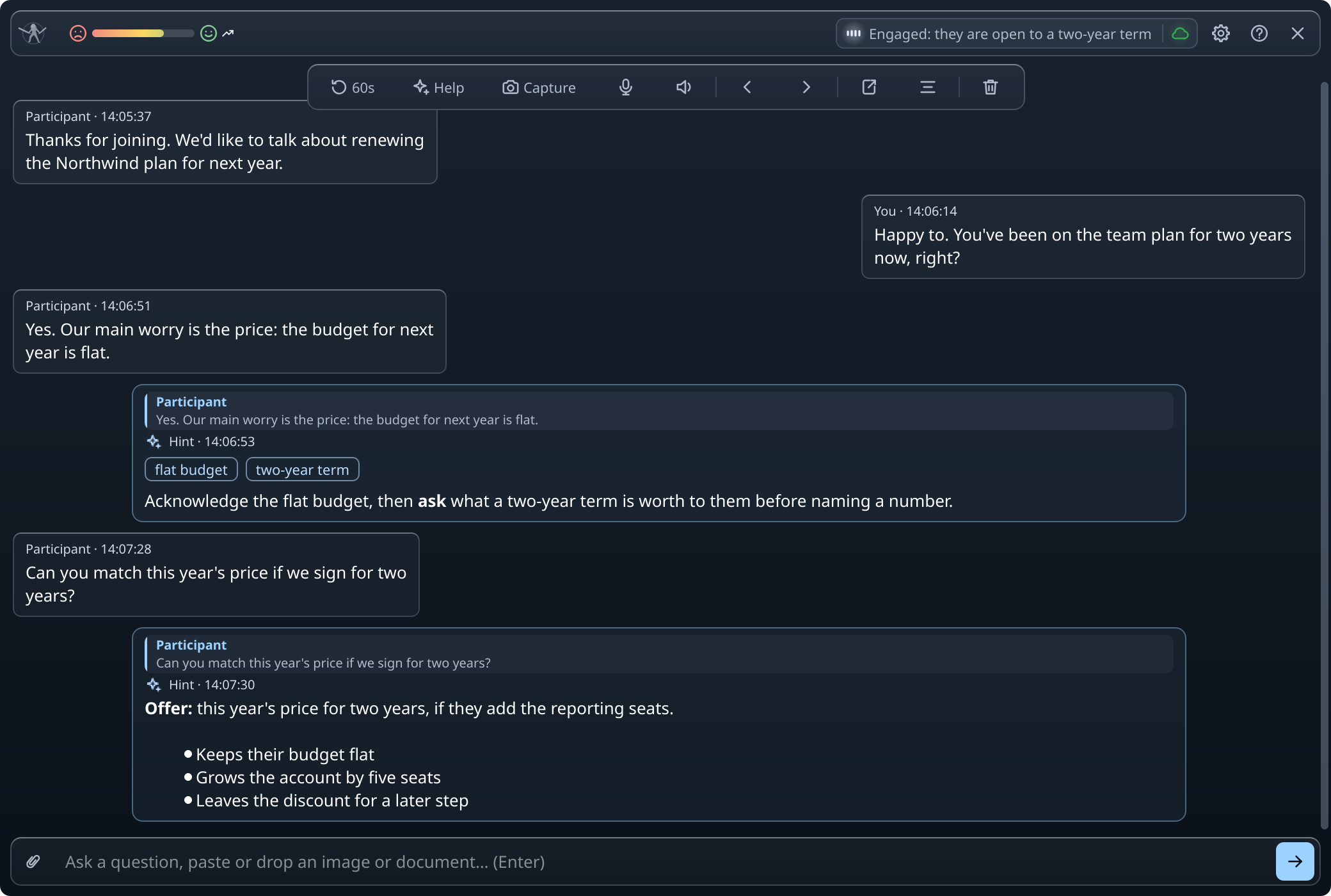
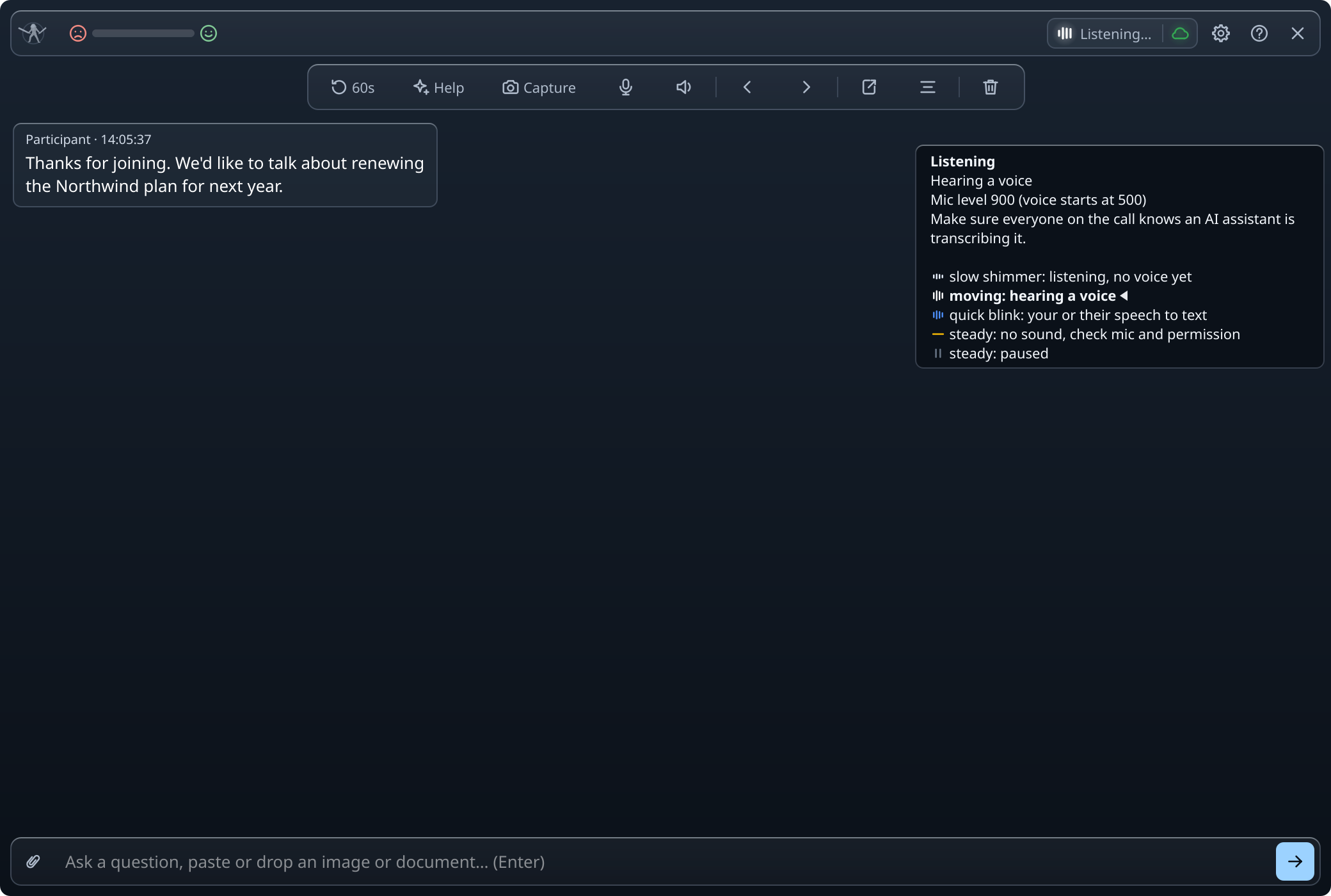
Real screenshots from the app, on one sample call: a plan renewal in which the customer’s engineer also asks about backend architecture.
A hint streams in while they are still talking
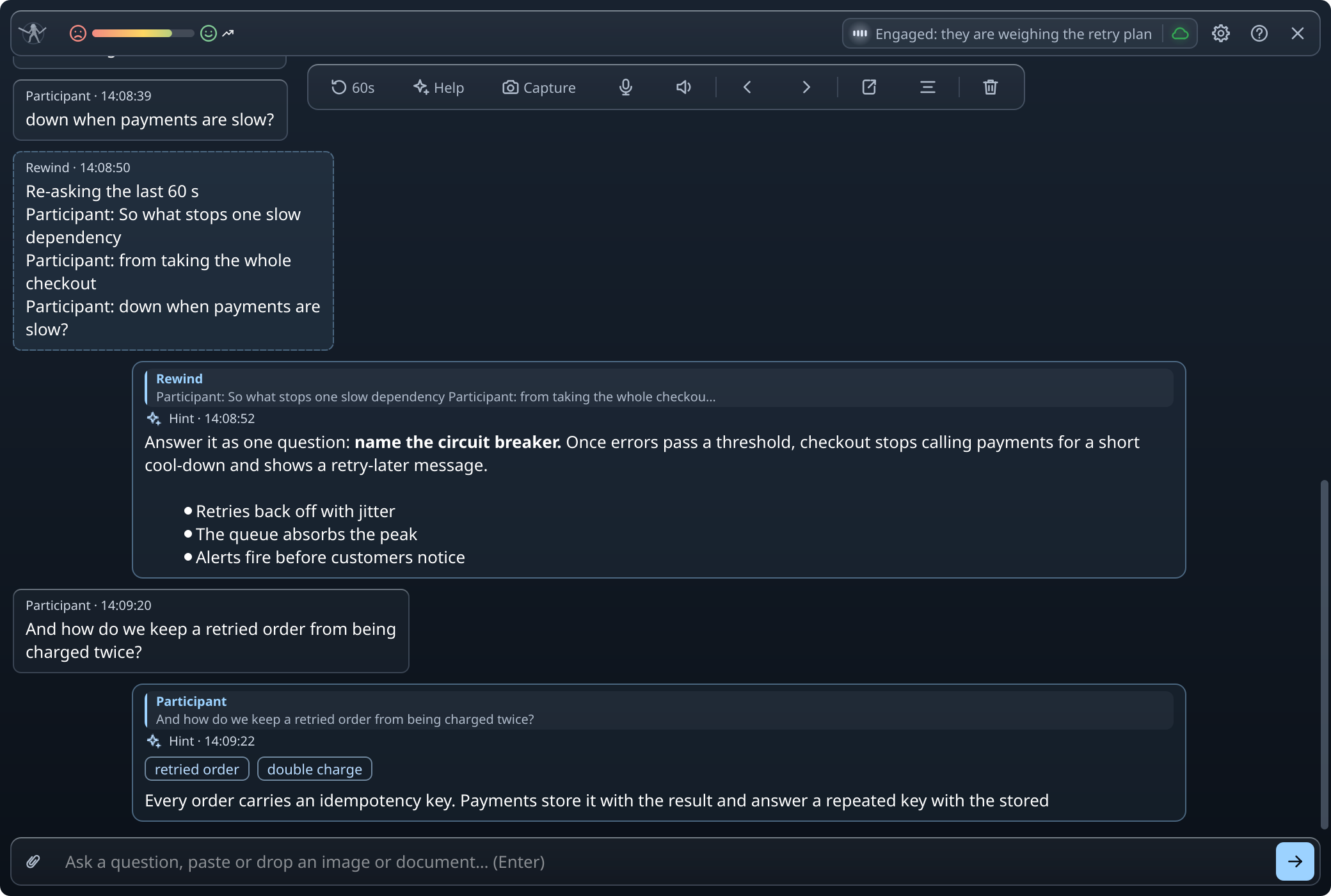
The app transcribes your microphone and the call’s audio. When a question lands, a short hint appears instantly, written the way you would say it out loud, and fills in as the AI writes, with the one to three things the other participants are really asking about. A few self-hosted AI endpoints answer all at once instead. The gauge in the header reads how the conversation is going.
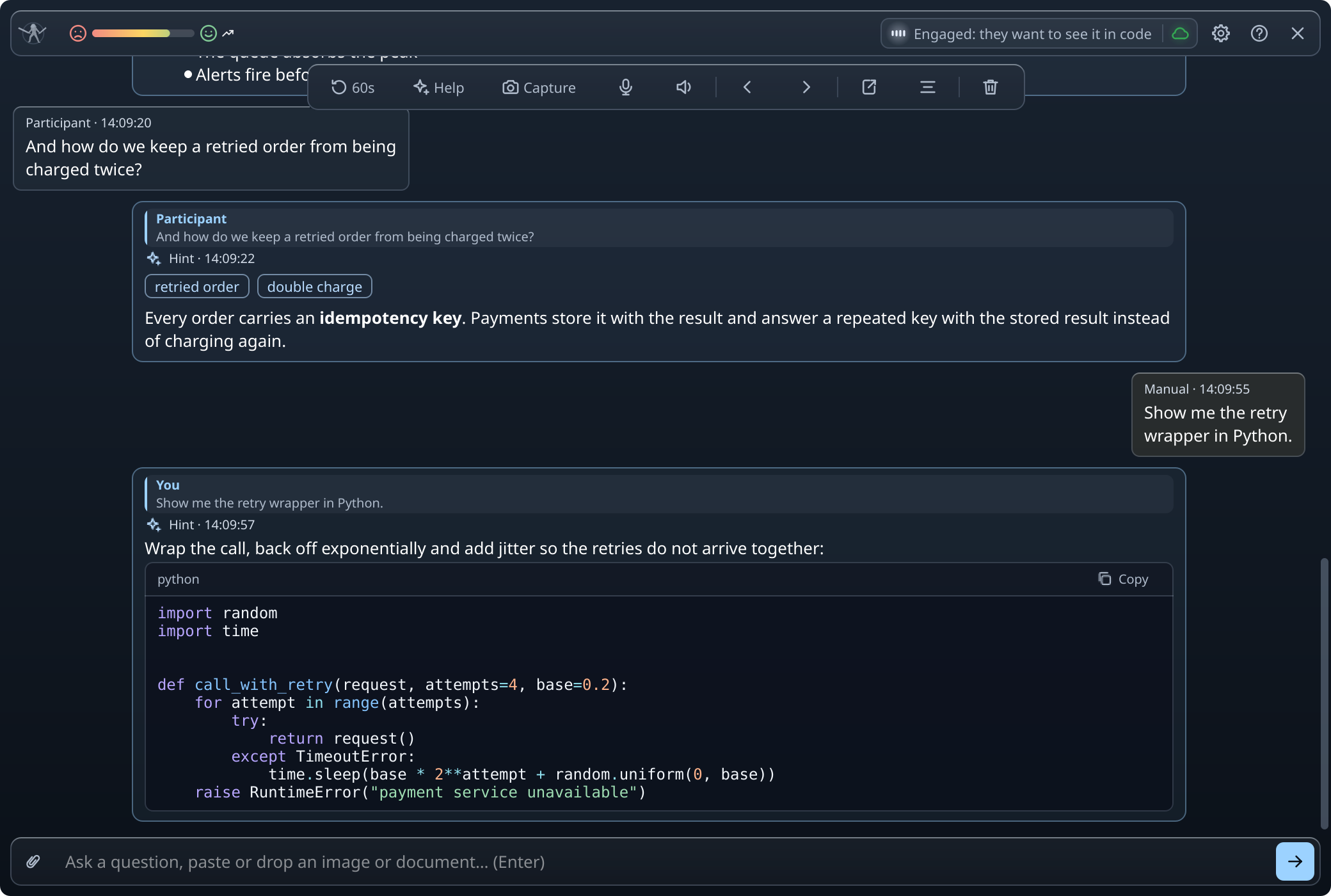
Code gets a box of its own
Ask for a snippet by voice or by typing. Code in a hint lands in its own box, labeled with its language, with Copy and text you can select. Drop a diagram or a screenshot into the input and the assistant answers what is in it.
A private window that stays on your screen only
On Windows and macOS the app’s window is excluded from your own screen shares and recordings, so your notes stay yours. On macOS a sharing or recording app can override this when it captures the whole display without window filtering (in Zoom’s settings, under Share Screen → Advanced → Screen capture mode, the mode “Advanced capture without window filtering”); the default modes respect it. On Linux the window is visible like any other window. It never hides the assistant from the other participants: you tell everyone on the call, and the app asks you to confirm that before the first call.
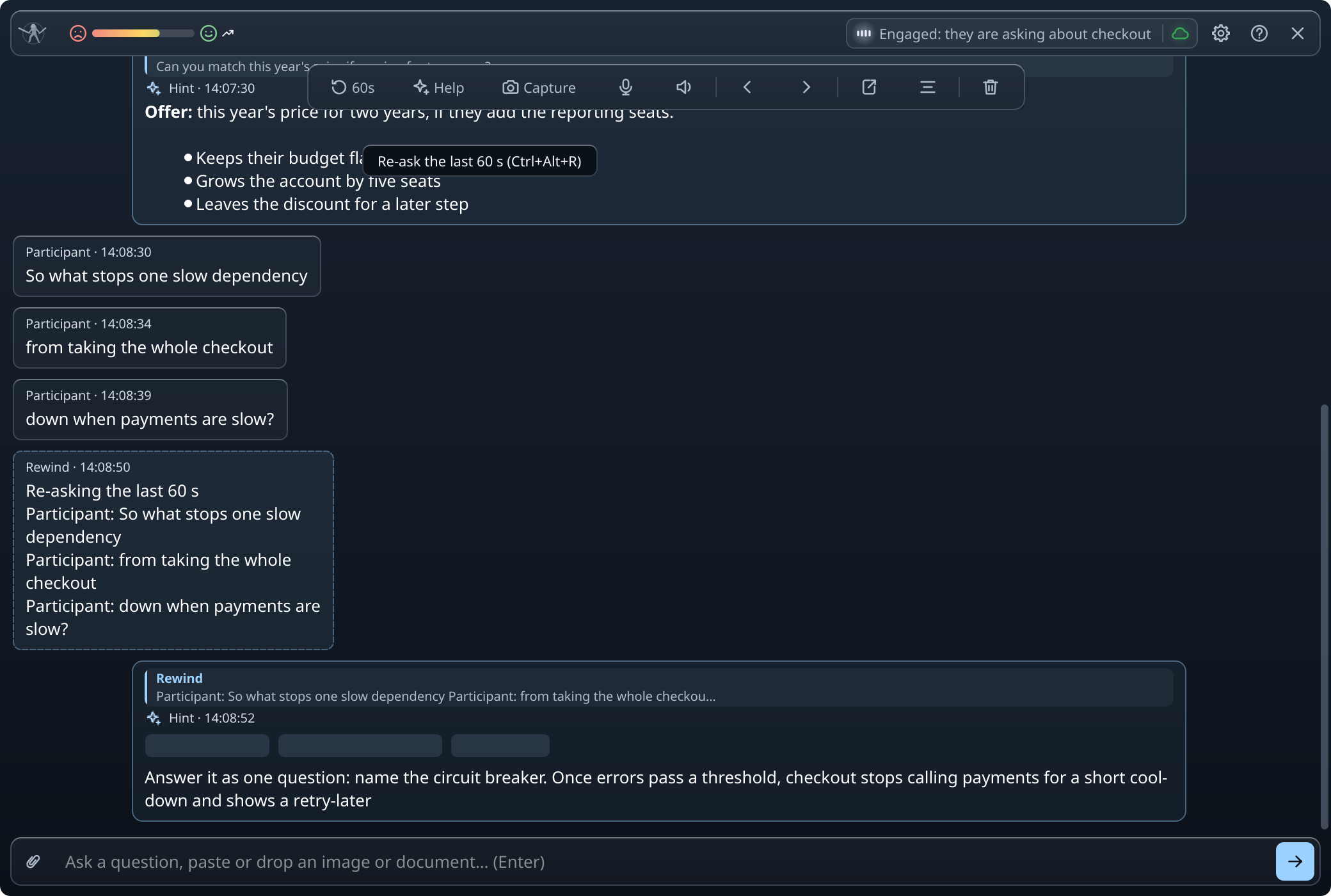
Missed it? Rewind the last 60 seconds
One press re-asks the last minute of the conversation as a single question, which fixes a question that arrived in fragments. and jump between the participants’ questions, and the feed waits while you read back.
Your shortcuts, your profiles, your AI
Every keyboard shortcut can be changed. Keep a saved profile for each kind of call, with a few lines about you and your role, so hints draw on your real experience, and switch them mid-call. Use your own AI account, through an API key or a command-line tool you are already signed in to, a local model, or the AI included in a hosted plan.
Make sure everyone on the call knows
The app transcribes the other participants’ voices, and in many countries and several US states recording or transcribing a conversation needs the consent of everyone in it. Tell the room before you start, and get their consent where the law requires it. Before the first call the app shows its disclaimer and asks you to confirm exactly that. Nothing is recorded until you accept.
And the rest of the toolbox
Click a box to read more.
Help me
One press captures the screen you choose and asks for help with it and the last minute of the call.
Capture screens
Queue a picture of the screen you choose, up to 10 of them, and send them together with a typed question.
Documents and images
Attach a chart, a slide, a code task or a document (.txt, .md, .pdf, .docx, or .doc where LibreOffice is installed, up to 20 MB each, up to 10 per question) and ask about it. Documents are read on your computer.
Question navigation
Jump between the participants’ questions; the feed resumes at the latest one.
Twelve languages
English is the default: speech is read in exactly the language you pick, with no detection. Automatic detects the language of each side of the call with speech on your computer or our hosted speech and answers from our hosted model, and the hints follow yours. The twelve: English, Ukrainian, Russian, German, Spanish, French, Japanese, Polish, Swedish, Chinese, Korean and Portuguese; Ukrainian, Chinese, Korean and Portuguese need a graphics card or Apple Silicon to be heard on your computer.
A quick second language
With a language you pick, one press switches speech and hints to a second language, and the next press switches back.
Call summary and a new chat
One press lists what was asked, what was answered or agreed, and the next steps. Clear chat starts a new chat, and can summarise the one it clears first (off by default).
Hints side by side
A new question is answered at once, beside the hints still being written, up to three at a time.
Mute your microphone
The app stops hearing you while it still hears the other participants, and drops a phrase under way. It does not mute you in the call, and every run starts unmuted.
Pause the participants
The app stops hearing the other participants while it still hears you: nothing of theirs is transcribed, sent or charged. Every run starts with them heard.
Chat history
Each chat is backed up on your computer as it happens and never uploaded, for 30 days by default.
Export a chat
Save the chat to your Documents folder as TOML, Markdown, HTML, PDF, plain text or a folder; it is saved on its own when it ends, unless you turn that off. The HTML page opens offline in any browser, with a list of the turns to jump to.
Restore a chat
Load an export or a backup back into the window, and ask follow-up questions, rewind or summarise it as if the call were still on.
Attach earlier calls
Pick up to ten earlier calls, with the same company for instance: what was said in them goes with every hint, so the hints build on it.
Your audio devices
Pick the microphone and the speaker the app hears; the change applies at once.
Click-through
Let clicks pass through the window to the app underneath while the hints stay visible.
Ask by typing
Type a question in the window without saying a word, and send it from anywhere with a shortcut.
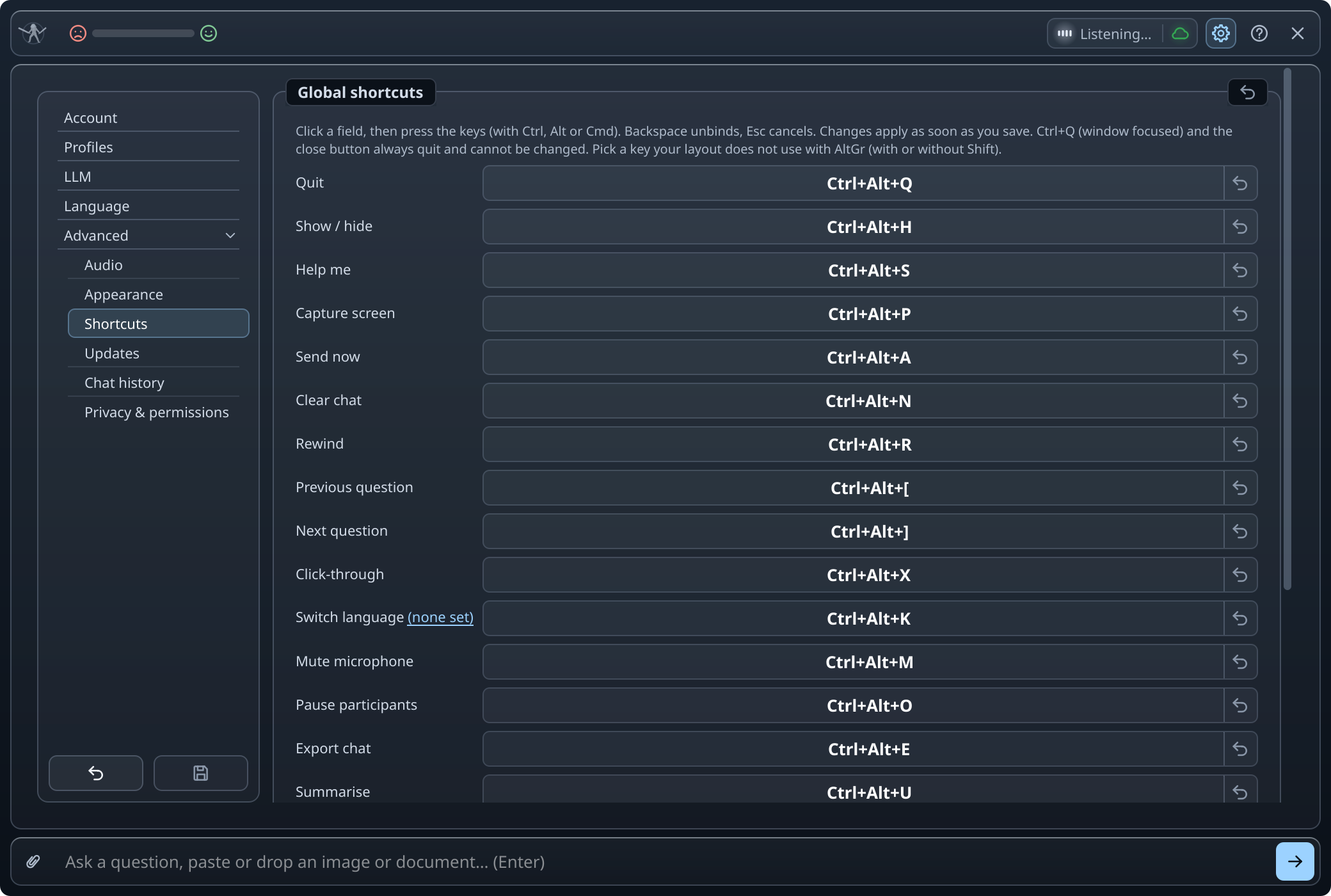
Default shortcuts
Ctrl+Alt with S for Help me, P to capture a screen, A to send now, R to rewind, [ and ] between questions, U for a summary, N for a new chat, M to mute, O to pause the participants, K for the second language, E to export, X for click-through, H to hide the window and Q to quit. Add Shift and an arrow key to move the window. Change any of them in the settings.
Pick the plan that fits
Use your own API key, a signed-in command-line tool or a local model, or take credits for the hosted model and hosted speech-to-text.
Own Key Lifetime
Use your own API key or a local model, for good.
$34.99$69.99one payment
Bought once, never expires
Runs offline for up to 30 days
Own Key Monthly
Use your own API key or a local model.
$9.99per month
Renews every month
Needs an internet connection
All-Inclusive
Hosted answers and speech, with credits every month.
$24.99per month
10,000 credits every month, for hosted answers and speech
One credit buys 10 seconds of hosted speech
Unused credits end with each billing month
Your own key or a local model as well
Credit Pack
Credits for hosted answers and speech, as many packs as you need.
$4.991,000 credits
1,000 credits for hosted answers and speech
One credit buys 10 seconds of hosted speech
Credits expire 180 days after purchase
Own Key Lifetime
Own Key Monthly
All-Inclusive
Credit Pack
Use your own AI: an API key, a signed-in command-line tool or a local model
Included
Included
Included
Not included
Credits for the hosted model, no account or key needed
Not included
Not included
10,000 every month
1,000 per pack, for 180 days
Hosted speech-to-text, paid in credits
With a Credit Pack
With a Credit Pack
Included
Included
Works without internet
Up to 30 days at a time, with a local model and local speech
Not included
Not included
Not included
How long it lasts
For as long as we offer the app
Renews every month
Renews every month
Until its credits are used or expire
Cancel to stop renewing
Bought once: nothing to cancel
Included
Included
Bought once: nothing to cancel
All sales are final; credits are non-refundable. Own Key Monthly, Own Key Lifetime and All-Inclusive work on 2 computers; a Credit Pack alone works on any number. The app shows how many credits are left.
Download and install
Pick your system: each has its own build and steps.
Run the installer and follow its steps. The build is unsigned, so on the first run SmartScreen shows "Windows protected your PC": click More info, then Run anyway.
3
Launch
Open Let Me Solo IT from the Start menu and allow the microphone when asked; the switch lives in Windows Settings, then Privacy & security, then MicrophoneWindows Settings›Privacy & security›Microphone, for desktop apps. Before the first call, the app asks you to confirm that you will tell everyone on the call.
Or install with one command
The PowerShell script from this site downloads the build for your system, checks it and installs it for your user only, without administrator rights: a silent setup into %LOCALAPPDATA%\Programs\Let Me Solo IT.
Install, or update to the latest release (add -Force to install it again):
Open the .dmg and drag LetMeSoloIT.app into Applications; if an older copy is there, choose Replace. Keep one copy only: with two, macOS refuses to open the app ("not responding"). The app carries only an ad hoc signature, so macOS refuses the first open: go to System Settings, then Privacy & SecuritySystem Settings›Privacy & Security, find the message naming LetMeSoloIT near the bottom, choose Open Anyway and confirm (on macOS 13 and 14, right-click the app, Open, then Open works too). That is needed once, not every launch. After every update, allow Screen Recording and Microphone again (remove the app from each list with the minus button if the switch looks on, and add it back to Screen Recording with the + button from Applications), then quit and reopen the app.
3
Launch
Open the app from Applications and grant the permissions it asks for, Microphone and Screen Recording. macOS applies Screen Recording after a restart, so quit and reopen the app once. Before the first call, the app asks you to confirm that you will tell everyone on the call. No sound from the other participants? See the macOS help.
Or install with one command
The shell script from this site downloads the build for your system, checks it and installs it for your user only, without sudo: the app in ~/Applications, or it updates the copy already in /Applications.
Install, or update to the latest release (add --force to install it again):
Terminal — zsh
% curl -LsSf https://letmesoloit.com/install.sh | sh
Uninstall; your settings, sign-in, logs and speech models stay:
Terminal — zsh
% curl -LsSf https://letmesoloit.com/install.sh | sh -s -- --uninstall
Run it to open the app window. On Linux the window is a normal window, not excluded from screen capture. On GNOME the app asks once which screens it may capture for screenshots: choose all of them. Before the first call, the app asks you to confirm that you will tell everyone on the call.
The shell script from this site downloads the build for your system, checks it and installs it for your user only, without sudo: the AppImage in ~/.local/bin, with its menu entry and icon.
Install, or update to the latest release (add --force to install it again):
user@ubuntu: ~
user@ubuntu:~$ curl -LsSf https://letmesoloit.com/install.sh | sh
Uninstall; your settings, sign-in, logs and speech models stay:
user@ubuntu: ~
user@ubuntu:~$ curl -LsSf https://letmesoloit.com/install.sh | sh -s -- --uninstall
Frequently Asked Questions
Everything you need to know about the product and billing. The guide covers every feature step by step.
Does the overlay show up when I share my screen?
On Windows and macOS the app's window is excluded from your own screen shares and recordings, so your notes stay private. On macOS a sharing or recording app can override this when it captures the whole display without window filtering (in Zoom's settings, under Share Screen → Advanced → Screen capture mode, the mode "Advanced capture without window filtering"); the default modes respect it. On Linux the window is visible like any other window. It does not hide the assistant from the other participants: you must tell everyone on the call that an AI assistant is transcribing it.
What are the system requirements?
Windows 10 21H2 or Windows 11 (x64), macOS 13.3 Ventura or later on Apple Silicon, or 64-bit Linux with glibc 2.34 or newer (Ubuntu 22.04, Debian 12, Fedora 35 or later). The app window works on all three; on Linux it is not excluded from screen capture. More in the guide: System requirements.
These are estimates. We measured two machines (a 2019 entry-level AMD laptop and a 2019 AMD laptop with a GeForce card) and extrapolated to similar hardware by graphics compute and memory. Intel graphics and Apple Macs are not measured yet. On a plan that includes hosted speech, Automatic uses it first, so the local rows matter only when the local model runs: without hosted speech, or when it stands in for it.
AMD
Intel
NVIDIA
Apple
Hosted speech (your computer does no recognition)
Ryzen 3 2000 series or newer
Core i3 7th gen or newer
— (no graphics card needed)
Any Apple silicon Mac (M1 or newer)
Local speech, Fast model (text about 3.5–5 s after a phrase ends; a phrase takes longer while the language is detected)
Ryzen with Radeon Vega 3 graphics or newer integrated graphics (Vega 8: about 2 s per phrase)
Core 11th gen or newer with Iris Xe graphics (not measured)
Any card from the next row
M1 or newer (not measured)
Local speech, Balanced model (about 1.3 s per phrase, about 2.1 s while the language is detected)
Radeon RX 5500 / RX 6500 XT or newer, 4 GB or more
Arc A380 or newer (not measured)
GeForce GTX 1650 / RTX 3050 or newer, 4 GB or more; the model stays on the card the whole call
M1 Pro / M2 Pro or newer (not measured)
With our hosted speech (re-measured on 2026-10-14, the call played aloud): on the Ryzen 3 3200U laptop the app used at most about 330 MB of memory and 20–27 % of one processor core, and the first words showed about 2 s after someone started speaking; on the Ryzen 5 3550H PC, at most about 300 MB and 23–33 % of one core, and about 2.4 s. Right after the language changes, the first words can take up to about 7 s.
All tiers: a 64-bit processor with at least 2 cores and 4 threads, and 8 GB of memory (the app itself uses up to about 480 MB, and on built-in graphics the Fast model takes about 620 MB more of the shared memory; the rest is for your call app and the system). If local speech is too slow, the app says so. On a plan that includes hosted speech it suggests Fast or hosted speech, or hosted speech alone when Fast is too slow; without it, Fast or the "Use the GPU" switch where it is offered, or the switch alone when Fast is too slow.
Which plan should I pick?
If you already have an AI account, either an API key or a command-line tool you are signed in to, or you run a local model, an Own Key plan pays for the app alone: Own Key Monthly, or Own Key Lifetime, paid once. If you would rather not set anything up, All-Inclusive gives credits every month for the hosted model and our hosted speech-to-text, and lets you use your own AI too. A Credit Pack gives credits with no subscription, alone or added to any plan; on its own it gives the hosted model and hosted speech only, not your own AI. Only Own Key Lifetime works without internet, up to 30 days at a time, with a local model and the local speech engine.
Can I try it before I buy?
There is no free trial: the app needs a plan, and without one it opens locked, showing only sign-in and the plans. Watch the tour at the top of this page to see the whole flow first.
Can I use my own AI account?
Yes. The Own Key plans and All-Inclusive use your own AI provider, through your API key or a command-line tool you are already signed in to, or a local model, so you control your usage costs. A Credit Pack alone gives only the hosted model. You can add a Credit Pack to Own Key Monthly or Own Key Lifetime for hosted answers and hosted speech.
What does a credit buy?
Credits pay for the hosted model and for our hosted speech-to-text. A hint costs credits by its size, and a call summary costs like a hint. Hosted speech costs one credit per 10 seconds of audio sent, with or without words, also when it streams; seconds under a credit carry over to the next phrase. Nothing is charged twice: when a speaker changes language, the service hears the phrase again from the audio it already has, at no extra cost. So 1,000 credits cover about 2 h 45 min of audio. The month’s credits are spent before a pack’s. More in the guide: Plans and credits.
What happens to my audio and my data?
The app transcribes your microphone and your computer's sound with the speech engine you choose. The local engine keeps the audio on your computer. A cloud engine gets the audio: a provider you set up with your own key, or, on All-Inclusive or with a Credit Pack, our hosted speech service through our server. The Automatic choice, the default, uses our hosted speech service while your plan includes it and credits are left, and the local engine otherwise; choosing the local engine keeps the audio on your computer. The text of each question goes to the AI you use. Our server stores your account and your usage in credits; it does not store your audio, transcripts or messages. Details are in the Privacy Policy.
Will local speech recognition run well on my computer?
These figures are approximate. On a plan that includes our hosted speech, Automatic uses it, and your computer does no recognition. Local speech needs a 64-bit processor with at least 2 cores and 4 threads and 8 GB of memory; the Fast model wants integrated graphics such as AMD Radeon Vega 3 or newer, and Balanced a graphics card with 4 GB or more, such as an NVIDIA GeForce GTX 1650. A phrase takes longer while the language is detected. The app itself uses up to about 480 MB of memory, plus about 620 MB for the Fast model on built-in graphics, and downloads its model once: about 265 MB (Fast) or about 575 MB (Balanced). If your computer falls behind, the app says so and suggests a faster choice: with our hosted speech on your plan, Fast or hosted speech (hosted speech alone when Fast is too slow); without it, Fast or the "Use the GPU" switch where it is offered (the switch alone when Fast is too slow). It never moves the audio to a cloud engine by itself. Every maker's parts are in the System requirements; more in the guide: Listening.
Can I use it on more than one computer?
Yes. Own Key Monthly, Own Key Lifetime and All-Inclusive work on 2 computers. With only a Credit Pack, the account works on any number of computers, all spending the same credits. To use a 2-computer plan on a third computer, choose Move my account to this computer when you sign in there: it signs out the computer you used longest ago, and after a move you wait 30 days before the next one. More in the guide: Your account and computers.
How do I cancel, and are there refunds?
Cancel a monthly plan on the Plan page of your dashboard; it stays active until the end of the period you paid for. Own Key Lifetime is bought once and cannot be cancelled. All sales are final: we do not refund purchases or unused credits. The one exception: a plan paid twice by mistake within moments is refunded in full automatically.
How do I delete my account?
On your dashboard's Security page. It cancels your running subscriptions and deletes your data from our database at once; our encrypted backups keep it for at most 14 days. See the Privacy Policy.
On my Mac the other participants are not heard. What now?
The app needs the Screen Recording permission to hear your Mac's sound. Follow macOS help.